See the bottle before you print
Make a bottle label mockup online
A label can look right on a flat canvas and feel different on a bottle. Preview your current design on a ready-made scene or your own bottle photo, compare stock looks, and save an image worth sharing.
Free PNG proofs · No signup · No watermark
Open the editor to make a mockupOpen a label, then choose Bottle.
Two ways to see it
A quick scene, or the bottle on your table
Preset bottle scenes
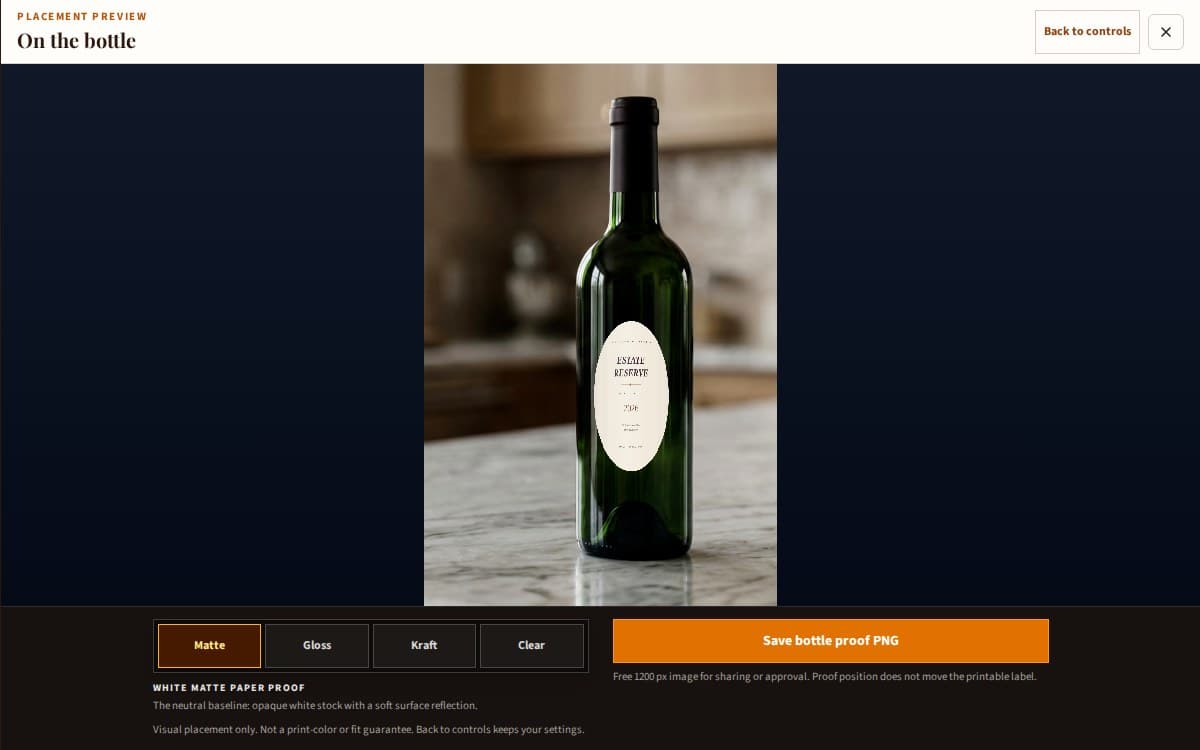
Beer, water, wine, hot-sauce, and jar scenes give you a fast first impression. Compare position and stock appearance without taking a photo. The fit controls use bottle estimates that you can replace with real circumference and straight-wall measurements.
Your own private photo
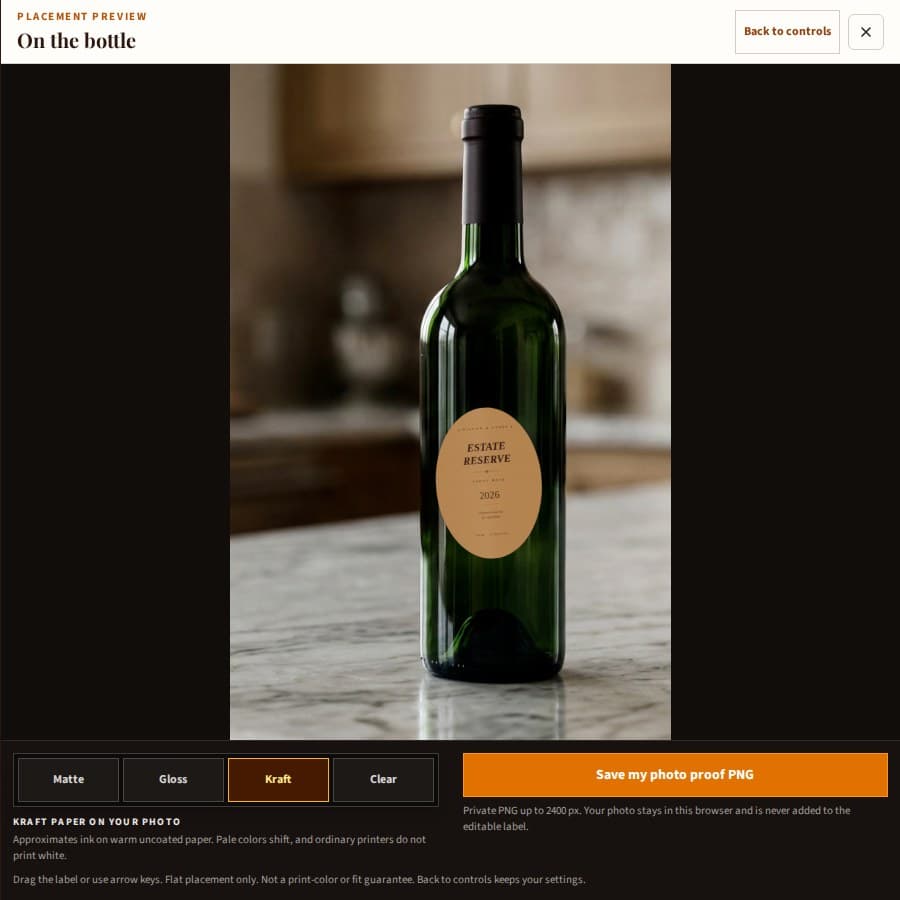
Use a clear, front-facing photo with space around the bottle and a visible label panel. A blank bottle is easiest: the tool places your design over the photo, but does not remove an existing label or infer perspective. Drag to position, then fine-tune size and angle.
The photo stays in the open proof panel—not on our server or in your saved label project. Save the proof PNG before closing the panel if you want to keep the image.
How to make your bottle mockup
Make or open your label
Start with an editable template, or open your saved project. Replace the names and details, choose colors and type, and import artwork if you need it. The bottle proof uses the label you are currently editing.
Choose Bottle in the editor
Pick Beer, Water, Wine, Hot Sauce, or Jar for a quick scene. Use the fit controls to compare a measured label with the selected container estimate. A preset is a starting point, not a promise that every bottle of that type is identical.
Try your own bottle photo
Choose Use my bottle photo and select a JPG, PNG, or WebP from your device. Drag the label onto the bottle, then adjust its size and rotation. Keyboard users can focus the photo and use the arrow keys; Shift makes a larger move.
Read the proof at full size
The bottle fills the panel and nothing is drawn over it. Container, material, and position chips sit beside the bottle on a wide screen and under it on a phone, where the proof takes the whole screen and the save, share or copy, and download actions sit in a bar pinned to the bottom. Escape closes the proof and discards the photo with it.
Save the mockup, then test the label
Use Save proof PNG for the combined bottle-and-label image. What the button beside it offers depends on the browser: Share proof opens the device's share menu where there is one, and Copy proof image puts the same PNG on the clipboard where there is not. A browser that can do neither offers only the PNG. For printing, use the separate Download menu in the top bar to export the label artwork or an actual-size print-sheet PDF.
Compare four stock directions
The same design can feel different on opaque paper, glossy film, warm kraft, or a transparent label. These are visual approximations—not a material recommendation or a prediction of printed color, adhesion, or durability.
- White matte paper
- A useful starting point for an opaque paper look. It does not predict the texture, coating, or color of a particular stock.
- White gloss film
- Adds a stronger surface shine for comparison. Real reflections depend on the light, bottle, adhesive, and material.
- Kraft paper
- Approximates ink on a warm paper surface. Pale colors shift, and ordinary home printers do not add white ink.
- Clear film
- Lets more of the bottle show through the design. White areas are not a simulated white-ink underprint; plan and test the real printing process.
A mockup is not the print file
For approval and sharing
Save the proof PNG. It includes the bottle, background, label placement, and chosen stock look. Native sharing appears only where the browser supports sharing image files; PNG saving remains available.
For ink and label stock
Use Download in the top bar for the label PNG or actual-size print sheet. Proof-photo position, rotation, and stock appearance do not alter the printable design. Measure the real bottle, print at 100%, and test the real stock before making a batch.
Bottle mockup questions
Is the bottle mockup generator free?
Yes. The editor, preset bottle scenes, private-photo placement, stock previews, and PNG saving are free, with no signup or watermark.
Can I put an existing label design on a bottle?
Yes. Open a blank label at the design's intended dimensions and import your PNG, JPEG, WebP, or SVG artwork. Arrange it on the label, then choose Bottle. Use the artwork upload for the label design and Use my bottle photo for the separate background photo.
Is my bottle photo uploaded or saved in my project?
No. The photo stays in memory in the current proof panel. It is not uploaded, sent to analytics, or stored in the editable project or its backup. Closing the proof panel discards it, so save the combined proof PNG before leaving if you want to keep the result.
Which photo files can I use?
Choose a JPG, PNG, or WebP file up to 15 MB, 36 megapixels, and 12,000 pixels on either side. Larger accepted photos are reduced to a working copy with a maximum 2400-pixel long edge. Convert HEIC photos to a supported format before choosing them.
Does it automatically wrap my label around a photographed bottle?
No. Custom-photo placement is flat: you control position, size, and rotation. It does not infer curvature, perspective, shadows, or physical scale from the photo. The preset scenes provide an approximate curved placement; neither mode replaces a measured paper test.
What size is the saved mockup?
Preset proofs are 1200 pixels wide. A private-photo proof preserves the photo's aspect ratio and is saved at its working resolution, up to a 2400-pixel long edge, without enlarging a smaller source. The proof is a PNG containing both the scene and the label.
Can I print the mockup as my bottle label?
Use the separate label artwork instead. A mockup includes the bottle and its background. Download in the editor offers the full-resolution label PNG and an actual-size Letter or A4 print sheet. Print one plain-paper test at Actual Size or 100% before using label stock.