Keep the editable source
Save and restore your bottle labels
Come back to a wine label next week, keep another batch separate, or move a design to a different computer. Named browser projects make returning easy; an editable .blm download gives you a separate copy to keep.
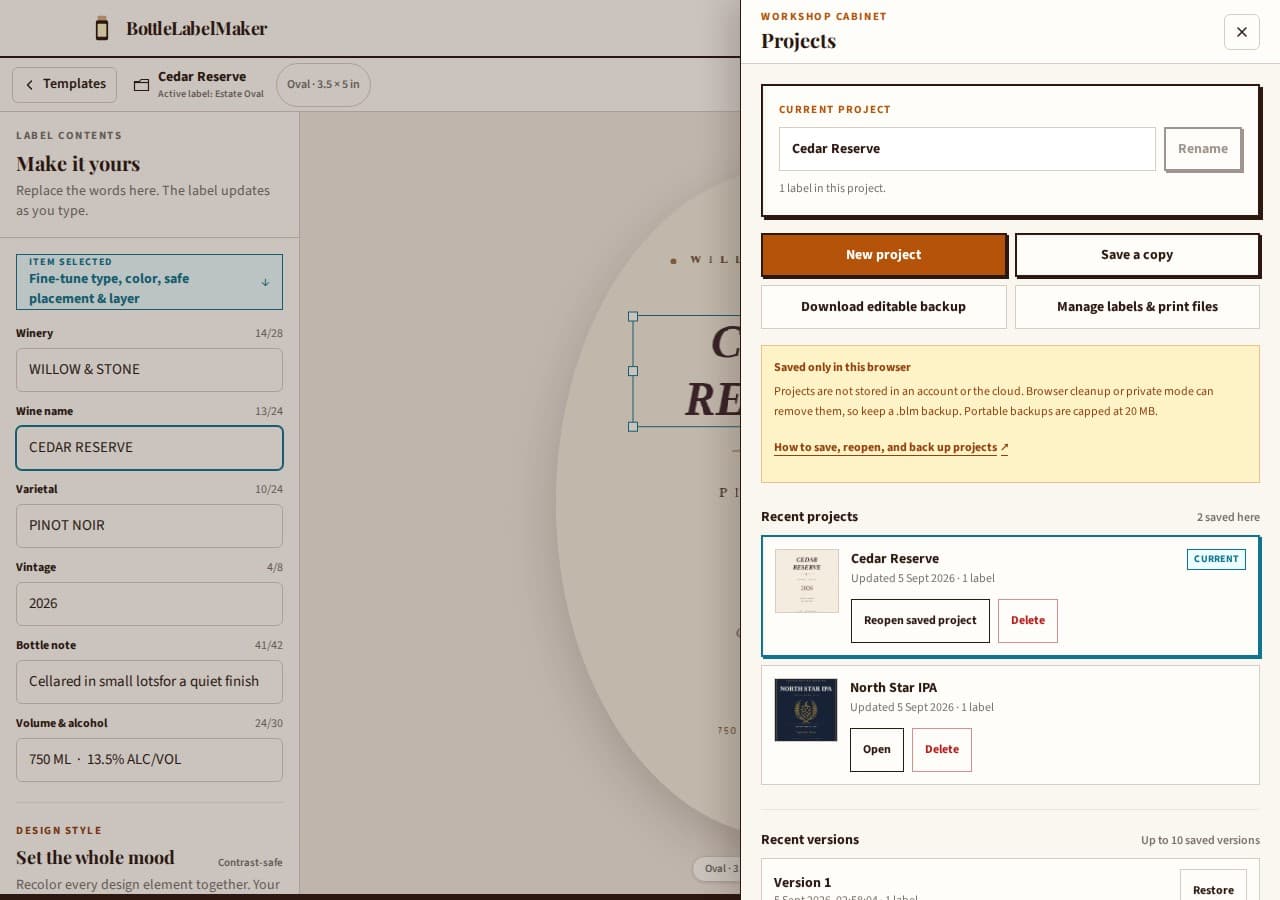
Open the label editorProjects save to this browser—not to an account or cloud drive.
Two ways to keep your work
A convenient project and a portable backup do different jobs
Browser project
Named, autosaved, and quick to reopen in the same browser profile. It keeps the current project and up to ten earlier saves, but browser cleanup or private mode can remove local work.
Portable .blm backup
A downloaded snapshot you can store elsewhere or import on another device. It holds the current project, every label, and imported artwork, but not earlier-version history.
01 · Save and name
Turn the open design into a project
Edit a label and keep the tab open until the document bar says Saved just now. If you want to keep an untouched template before editing it, open Projects → Save this project.
Give the project a useful name
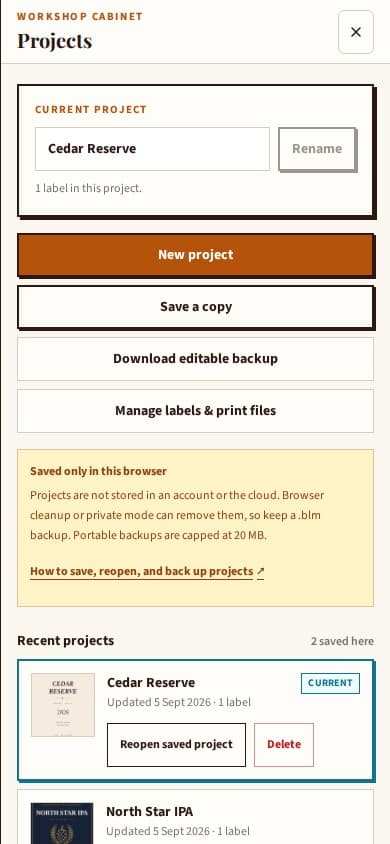
Select the project name in the document bar to open Projects. Enter a Project name, then choose Rename. The project name identifies the whole job; label names identify the front, back, flavor, or batch designs inside it.
Branch without losing the original
Save a copy makes a separate project from the current one. New project starts a fresh design while preserving the projects already in the library.
02 · Return safely
Open the saved copy in the same browser profile
When you return, an initial Restore My Design prompt may appear. You can also choose Projects, find the project, and select Open. Keep the tab open while current edits finish saving.
For the project already marked Current, Reopen saved project explicitly discards edits open in the tab only after you confirm. Download a backup or save a copy first when those edits matter.
03 · Keep a separate copy
Download the editable project before you need it
Choose Projects → Download editable backup. The .blm file captures the current project, all labels, and imported artwork—including current edits if autosave failed—subject to the 20 MB portable-backup cap. Store it outside browser data, such as in a backed-up folder or your own drive.
A label PNG, print-sheet PDF, or proof image is not an editable source. Neither a browser project nor a .blm file includes a private bottle-proof photo, so save its combined proof PNG separately. A .blm snapshot also does not carry earlier versions.
04 · Move or recover
Import a .blm file as a new project
- 1. Open Projects → Manage labels & print files, then choose Choose backup file.
- 2. Review the preview of the labels and backup date before proceeding.
- 3. Select Import as new project. Existing saved projects stay intact.
This is a manual, editable transfer between devices: send or copy the file using a method you trust, then import it in the destination browser.
05 · Step backward
Restore one of the recent saved versions
Open Projects → Recent versions, choose Restore beside the revision you want, then confirm with Restore this version. The displaced current state is retained within the recent-version limit.
Projects keep up to ten earlier saves—not unlimited history. For important milestones, use both Save a copy and a dated .blm download.
What to do if a save fails
- Keep the active tab open. If saving reports an error, try Download editable backup before leaving.
- Keep conflicting edits separate. If another tab has newer edits, Save a copy preserves your open design as a separate project. Reopen the saved project only when you mean to discard current unsaved edits.
- Free storage only after backing up. If the browser is out of room, keep backups before deleting unneeded projects. The editor cannot recover a design after every browser and downloaded copy is gone.
Project and backup questions
Are my projects stored in an account or the cloud?
No. Saved projects belong to this browser profile. Private browsing or clearing browser data can remove them, so keep a downloaded .blm file somewhere outside browser storage.
Can I share a project by copying its editor URL?
No. A project-ID URL only points this browser toward its local copy; it is not design sharing or cross-device synchronization. Send the .blm file when you need an editable manual transfer.
Is a PNG, PDF, or bottle proof an editable backup?
No. Those files are useful outputs, but they do not preserve the editable project. Download the .blm source too. Bottle-proof photos are intentionally excluded from both project saves and .blm files; save the proof PNG separately.
What if two tabs or copies have different edits?
Keep the tab with the work you want, download its backup first, then use Save a copy to preserve a separate project. Reopen a saved project only when you intend to discard the current unsaved edits and have confirmed the prompt.